Clear Terminal Screen (and Keep History)
Starting with macOS 14 (Sonoma), the clear command has started to discard the previous contents of the terminal, not just scroll them out of the screen. This experience can be anything from irksome to disruptive based on the contents lost.
As someone who runs clear very frequently, this became quite annoying for me. So, one afternoon, when I was feeling particularly geeky, I went down a rabbit hole of StackOverflow posts, arcane docs about terminal escape sequences and finally even the source code of the clear command to understand what exactly was happening here and how to fix it. In doing so, I also learnt a bunch about how these things work under the hood and thought it was something worth sharing.
So let’s first go over some solutions to get around this issue. And then, we’ll talk about the root cause of the issue, for which we’ll explore the inner workings of the clear command.
Solutions
There are a number of different solutions for this. Here, I’ve explained two of these — the ones I find the easiest to implement (and undo later, if needed).
Solution #1: Override the behavior of clear
Use your favorite text editor to add the following alias for the clear command in your ~/.zprofile file.
alias clear="printf '\033[H\033[2J'";Save the file, open a new Terminal tab/window, and you’re all set. When you run clear, the alias you’ve set up will be run instead.
This looks quite obscure, though. Let’s break it down a little.
\033[H and \033[2J are escape sequences that perform special actions in the terminal.
The clear command issues three escape sequences in the terminal.
\033[H: Move the cursor to the top left of the screen.\033[2J: Clear the contents of the screen.\033[3J: Discard the previous contents of the screen.
To prevent discarding the previous contents, we override the clear command’s behavior using the alias such that it only prints the first two escape sequences and skips the third one.
Note: Newer versions of clear support passing in a -x flag — which prevents discarding the previous contents of the screen. More on this later in the post, but in case you have one of these newer versions of clear, you can update your alias to:
alias clear="clear -x";Solution #2: Use iTerm2
Another solution is to switch to using the iTerm2 app in place of the built-in macOS Terminal app. iTerm2 is a Free and Open Source app which not only does everything the built-in Terminal app does, but also has lots of additional features. More importantly for this case, iTerm2 has a setting which prevents the \033[3J escape sequence from discarding the previous contents of the terminal.

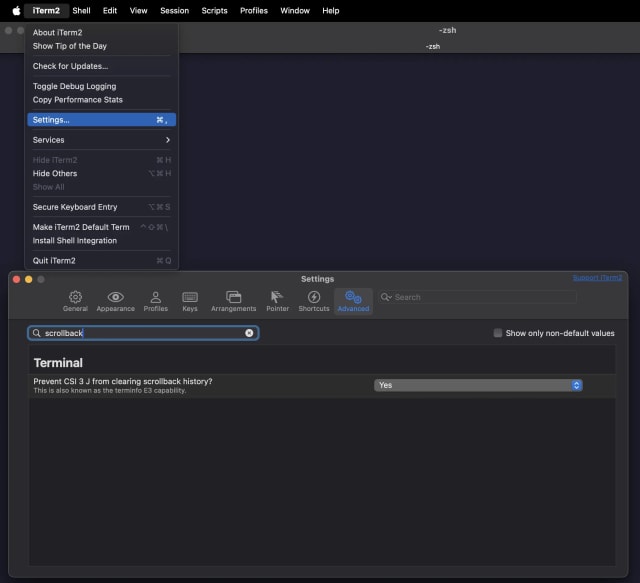
The setting is called “Prevent CSI 3 J from clearing scrollback history?” Once you’ve installed iTerm2, open its Settings → Advanced, and search for “scrollback”. Set the value to “Yes”, and you’re all set.
And there you have it! Two simple solutions to fix this issue. Pick any one you prefer, and you can get back to clearing the screen as often as you like.
The remainder of this post covers the cause of this issue and how the clear command works under the hood. If this isn’t your cup of tea, no worries! Feel free to skim or skip.
The inner workings of clear
The clear command is defined in the ncurses library. The code for it is written in C. Like other libraries, ncurses has multiple versions, and the behavior of clear has changed across these versions. This post discusses the behavior in version 6.0, which is what macOS 14 uses.
If you want to read the source code, you can download it from the author’s website. But this can get quite involved quite quickly. I’d recommend reading through this post first, then going into the source code.
The manual pages are a good place to start. On running man clear, you should see:
clear clears your screen if this is possible, including its scrollback buffer (if the extended "E3" capability is defined). clear looks in the environment for the terminal type and then in the terminfo database to determine how to clear the screen.
Alright, let’s break this down.
The scrollback buffer and the E3 capability
The previous contents of the terminal are stored in something called the scrollback buffer. Clearing the scrollback buffer is what results in these contents getting discarded.
And support for clearing the scrollback buffer is called the E3 capability. In other words, the E3 capability tells the terminal how to clear the scrollback buffer.
But how is the clearing really done under the hood? The answer is using escape sequences.
Escape sequences, terminal types, and terminfo
As mentioned briefly earlier, escape sequences are sequences of characters which, when printed, perform special actions in the terminal like moving the cursor, erasing contents on the screen, changing text color, etc. Programs can interact with the terminal by writing escape sequences.
Over the years, different terminal types have defined different escape sequences to perform the same actions. In addition to that, different terminal types have a different set of capabilities. Newer terminal types can do more things, like render more colors and show different font styles.
To prevent developers from having to write different code for different terminal types, the OS maintains a database of terminal types, their capabilities, and the escape sequences for each capability. This is called the terminfo database. The terminfo database can be queried by programs to check whether the current terminal type has a certain capability and to get the escape sequence for it.
Let’s try this out. First, get the terminal type from the $TERM environment variable. On macOS, this should give you xterm-256color.
echo $TERMNext, query the terminfo database to get the escape sequence for the terminal’s “clear” (clear the screen) and “E3” (clear the scrollback buffer) capabilities.
infocmp -x xterm-256color | grep "clear="infocmp -x xterm-256color | grep "E3="For my terminal, here’s how the output looks.
$ infocmp -x xterm-256color | grep "clear=" clear=\E[H\E[2J, cnorm=\E[?12l\E[?25h, cr=^M,$ infocmp -x xterm-256color | grep "E3=" E3=\E[3J, Ms=\E]52;%p1%s;%p2%s\007, Se=\E[2 q,The escape sequences for “clear” and “E3” in my terminal are \E[H\E[2J and \E[3J respectively.
Some eagle-eyed readers may have noticed that these look similar to the escape sequences used earlier when setting up an alias to override the clear command’s behavior.
The escape sequences are actually the same as the ones from earlier. Here, the \E stands for the ESC character (ASCII code 27). To print these using printf, we have to use\033 instead of \E (033 is the octal representation of 27).
So how does clear work?
The clear command looks up the E3 capability in the terminfo database. If it exists, it issues the escape sequence for it. It then looks up and issues the escape sequence for the “clear” capability.
And that’s it!
The root cause of the issue
Now that we’ve understood how clear works, we’re quite close to the root cause.
Perhaps the E3 capability was added in macOS 14? After all, this issue was not present in earlier versions of macOS.
Nope — a quick check on an older macOS version revealed that it was present earlier as well.
Digging deeper
To get to the bottom of this, I had to look through how the behavior of the clear command has gone through changes over time.
We know that in version 6.0 of ncurses, the clear command clears the terminal screen and the scrollback buffer (if the E3 capability is present).
But in versions upto 5.9 of ncurses, it would only clear the terminal screen and not touch the scrollback buffer. It would’t check for the E3 capability and issue its escape sequence.
Earlier versions of macOS were using older versions of ncurses. macOS 14 upgraded to version 6.0 of ncurses, and that’s why clear started to clear the scrollback buffer.
Looking forward
Version 6.1 of ncurses updated the behavior of clear further to add support for a -x flag, which prevents clearing the scrollback buffer.
Newer versions of macOS — macOS 15 (Sequoia) and macOS 26 (Tahoe) — continue to use version 6.0 of ncurses. And no, that 26 is not a typo. macOS 26 (not 16) is the next version after macOS 15. 🤷🏻♂️
Once macOS upgrades to using version 6.1 or higher, we can switch to running clear -x, or, as touched on earlier, update our alias to:
alias clear="clear -x";